


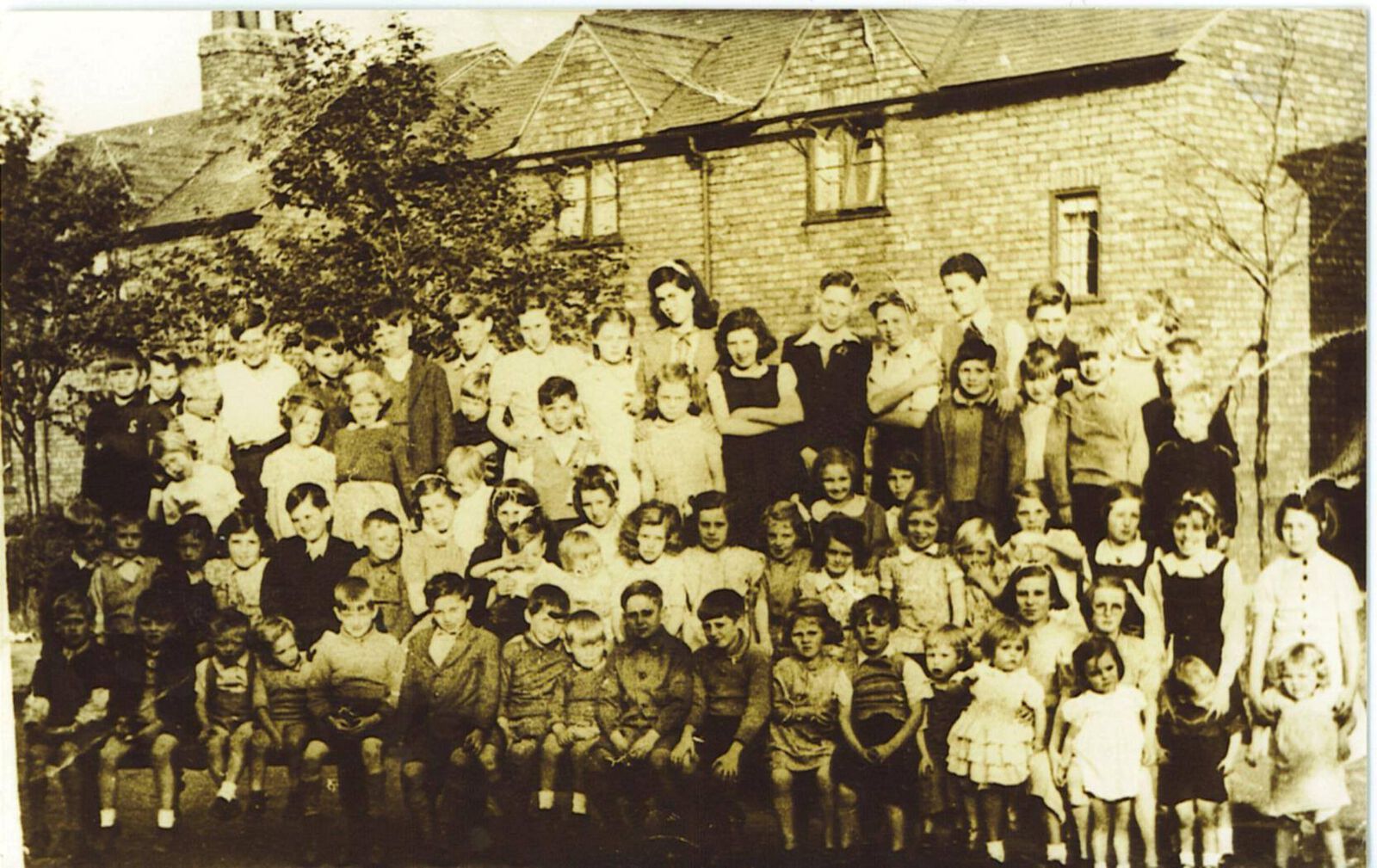
Old Photos of Bedlington 2
Album created by
Alan Edgar (Eggy1948) ·
Updated
Photos + info of the Top End and the Station(Sleekburn)
- 49 images
- 4 album comments
- 108 image comments
- 19,042 views
-
-
 1
1
-
49 images
-
-
By Alan Edgar (Eggy1948) · 5 comments
-
By Alan Edgar (Eggy1948) · 1 comment
-
By Alan Edgar (Eggy1948) · 2 comments
-
By Alan Edgar (Eggy1948) · 5 comments
-
By Alan Edgar (Eggy1948) · 2 comments
-
By James
-
By James
-
By James · 3 comments
-
By James · 1 comment
-
By James · 1 comment
-
By James · 2 comments
-
By James · 3 comments
-
By James
-
By James
-
By James · 1 comment
-
By James · 2 comments
-
By James
-
By James
-
By James · 1 comment
-
By James
-
By James
-
By James · 2 comments
-
By Alan Edgar (Eggy1948) · 4 comments
-
By Alan Edgar (Eggy1948) · 3 comments
-
By Alan Edgar (Eggy1948) · 1 comment
-
-
By Alan Edgar (Eggy1948) · 1 comment
-
By Alan Edgar (Eggy1948) · 1 comment
-
By Alan Edgar (Eggy1948) · 7 comments
-
By Alan Edgar (Eggy1948) · 1 comment
-
By Alan Edgar (Eggy1948) · 1 comment
-
By Alan Edgar (Eggy1948) · 1 comment
-
By Alan Edgar (Eggy1948) · 15 comments
-
By Alan Edgar (Eggy1948) · 7 comments
-
By Alan Edgar (Eggy1948) · 1 comment
-
By Alan Edgar (Eggy1948) · 1 comment
-
By Alan Edgar (Eggy1948) · 1 comment
-
By Alan Edgar (Eggy1948) · 2 comments
-
By Alan Edgar (Eggy1948) · 1 comment
-
By Alan Edgar (Eggy1948) · 5 comments
-
By Alan Edgar (Eggy1948) · 3 comments
-
By Alan Edgar (Eggy1948) · 3 comments
-
By Alan Edgar (Eggy1948) · 2 comments
-
By Alan Edgar (Eggy1948) · 1 comment
-
By Alan Edgar (Eggy1948) · 1 comment
-
By Alan Edgar (Eggy1948) · 6 comments
-
By Alan Edgar (Eggy1948) · 1 comment
-
By Alan Edgar (Eggy1948) · 7 comments
.png.5a3d715c209f2ba9c30114105a16c0ba.png)
2.jpg.e49b3cb4844a0afa1727fe53d5acabcd.jpg)
4 Album Comments
Create a free account or sign in to comment