



Skip to content
View in the app

A better way to browse. Learn more.

Bedlington.uk

A full-screen app on your home screen with push notifications, badges and more.

To install this app on iOS and iPadOS
  1. Tap the Share icon in Safari
  2. Scroll the menu and tap Add to Home Screen.
  3. Tap Add in the top-right corner.
To install this app on Android
  1. Tap the 3-dot menu (⋮) in the top-right corner of the browser.
  2. Tap Add to Home screen or Install app.
  3. Confirm by tapping Install.

Vic Patterson

  • Joined

  • Last visited

Image Comments posted by Vic Patterson

  1. A little off topic, sorry.

    Re. your computer Alan, I too maintain my "Vista" computer because of the old programs etc, (photo editing, printing options) I also bought a new PC but only use it to keep it updated! I hate the newer Windows, (anything newer than Vista) I usually transfer anything I need by using a flash drive and an external hard drive. I now use Apple products whenever possible, MacAir etc, which accepts the flash drive and external hard drive. Oh for a good photo editing program.

  2. HPW, Dot says she wasn't in that class as they are a year older! but if you can pan the camera around to the cemetery you just might see a smoke signals, that would be her....

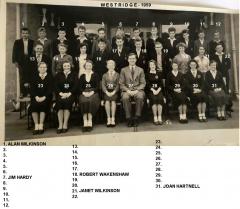
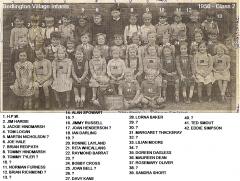
  3. My wife Doreen has a few suggested names, #5 Raymond Barret, #11 Jimmy Neal, #16 Brian Redpath, #17 Raymond Mack, #19 Chris Watson, #23 Ann Thompson, #25 Ann Nichol, #27 Mr Bebbington, #28 Margaret Slator, #30 Joan ? #31 Ann Brown.

  4. Thank you Eggy, this will do for me, I'll play around with it for now, I've had some success cleaning up old family photo's, like you my desktop is collecting dust, it stopped connecting to the internet but I'm reluctant to get rid of it as it is my back up for pictures and music, it has my photoshop type programs on it etc but one day... 

Account

Navigation

Search

Search

Configure browser push notifications

Chrome (Android)
  1. Tap the lock icon next to the address bar.
  2. Tap Permissions → Notifications.
  3. Adjust your preference.
Chrome (Desktop)
  1. Click the padlock icon in the address bar.
  2. Select Site settings.
  3. Find Notifications and adjust your preference.